Table of Contents
Dashboard / User Profile
 Updated
by Andreas Knaupp
Updated
by Andreas Knaupp
Dashboard
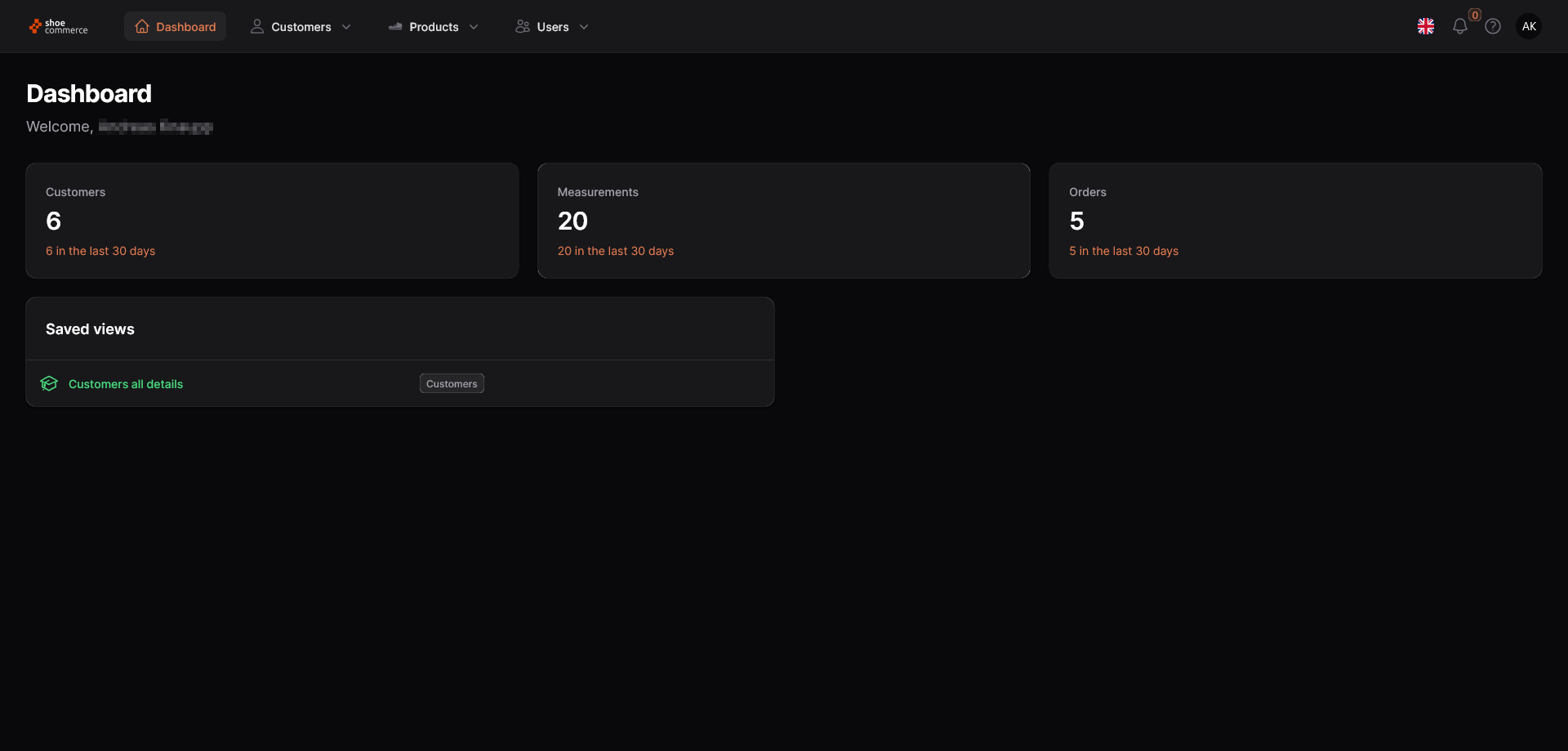
- After signing in to the backend, you will be taken to the dashboard. This is the start screen of the MyPSA backend. You can return to the dashboard at any time by clicking on the “shoe commerce” logo or on the “Dashboard” button.
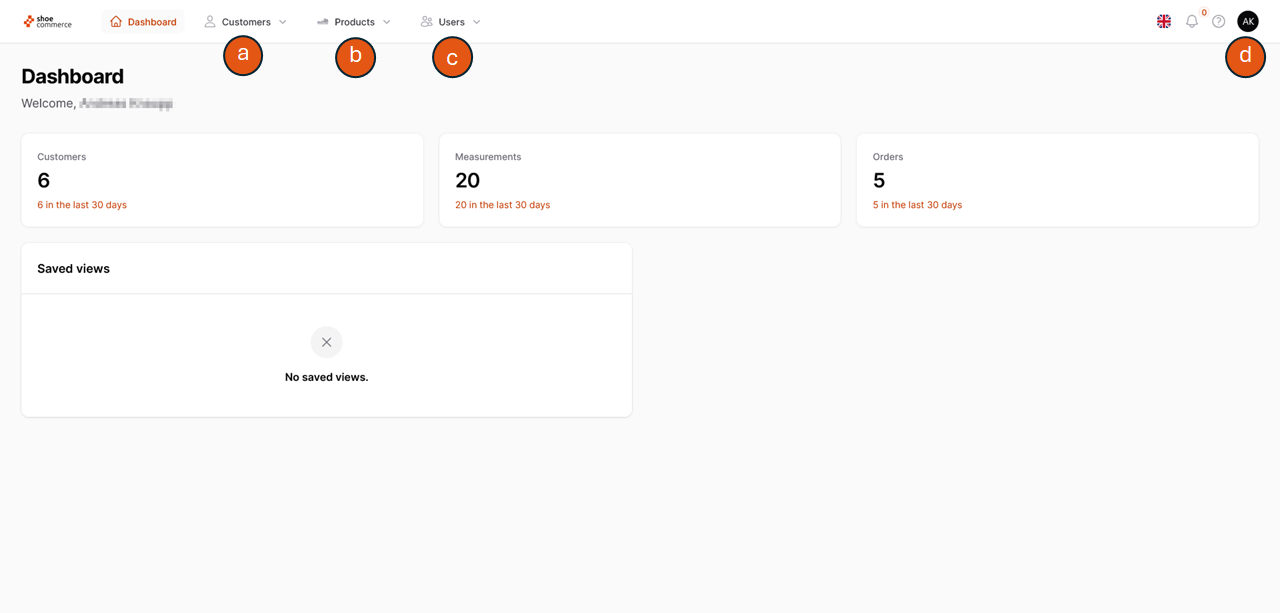
- The following main menus are available for you on the dashboard:
- Customers
- Products
- Users
- User settings (these are displayed after clicking on your initials)
Click on one of the main menus listed above to open the corresponding submenus as shown below.
Main Menu | Submenu |
Customers |
|
Products |
|
Users |
|
User profile (your initials) |
|
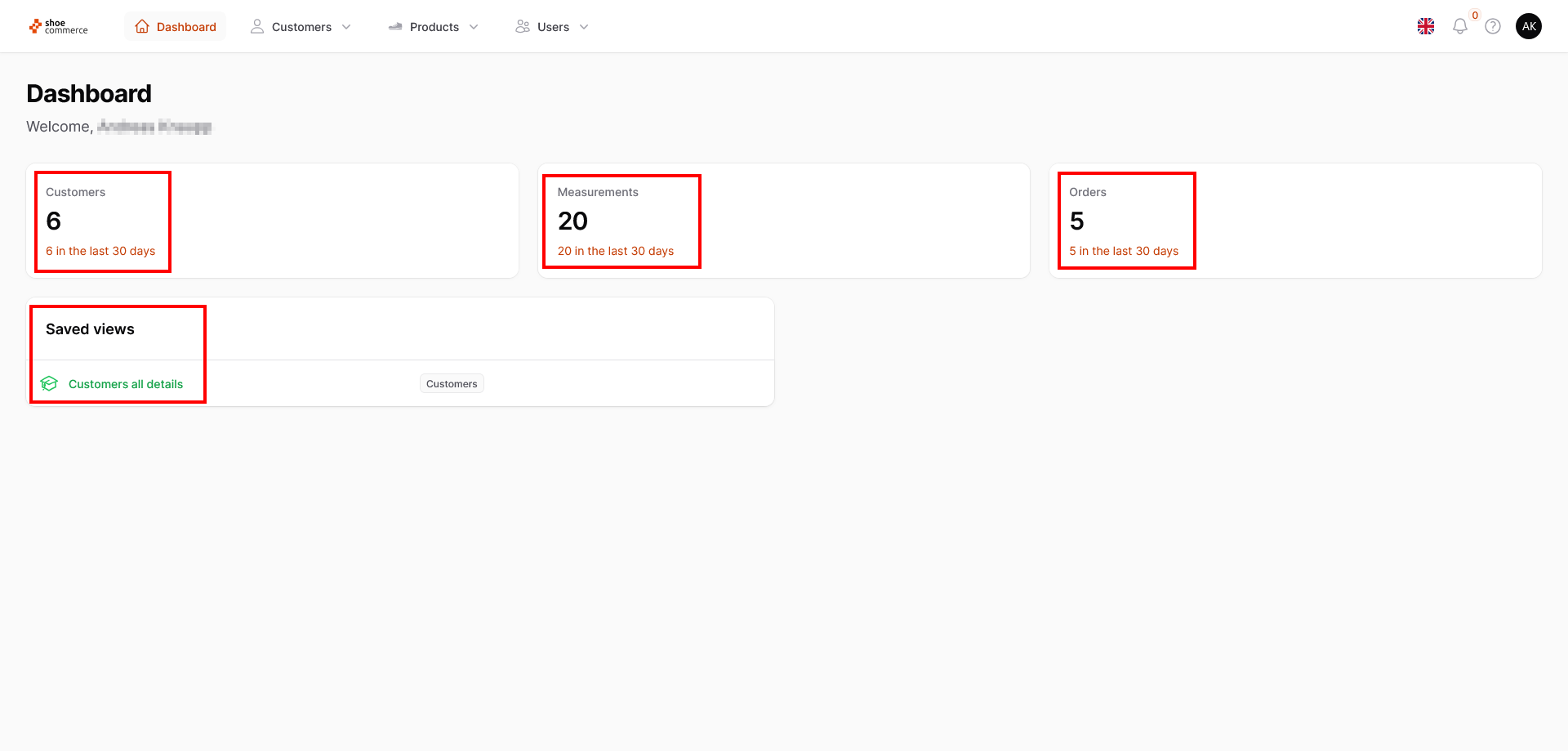
- Furthermore, you will be shown news from the last 30 days in the “Customers”, “Measurements” and “Orders” segments. In addition, you can access all the views you have saved and marked as favorites directly from the dashboard. Here in the example “Customers all details”. You can find out how to create these views here.
User profile (change password/email)
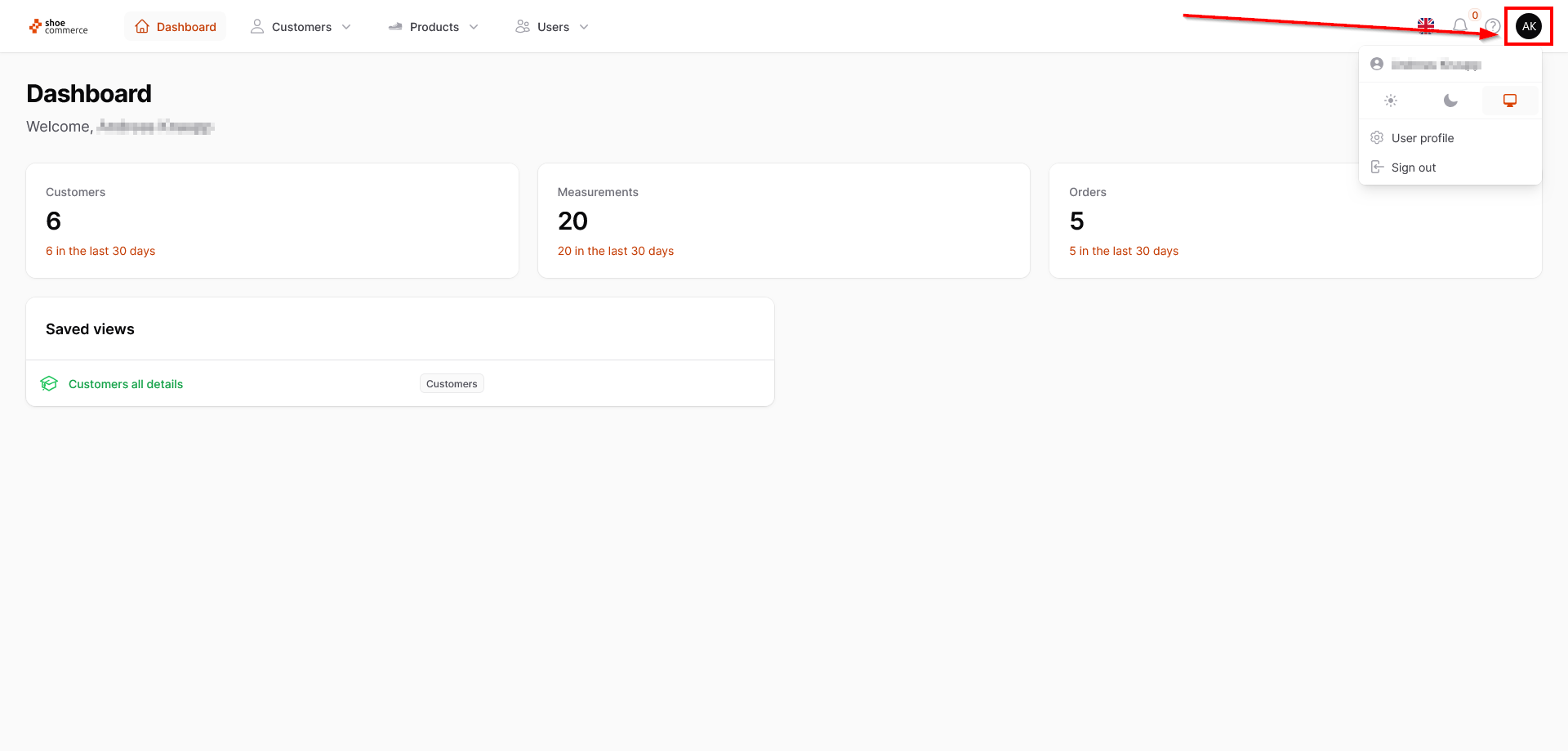
- You can access the user profile of the dashboard by clicking on your initials in the top right-hand area of the dashboard. Here you have the option of switching the display to a dark mode or using the system theme of your operating system.
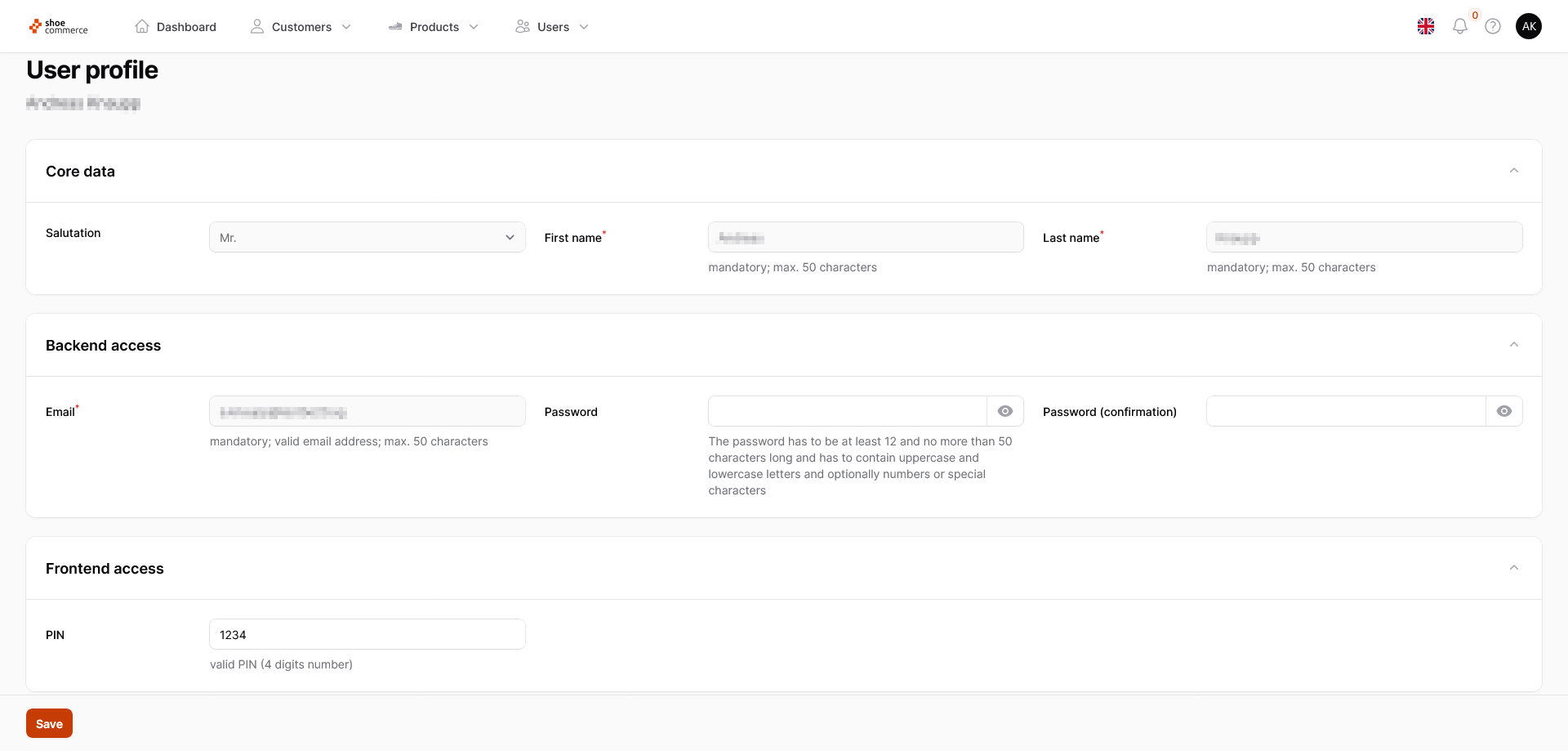
- You can also change not only your Backend and Frontend password but also your e-mail address by clicking on "User profile". If you change your password, first enter it in the “Password” field and repeat the entry in the “Password (confirmation)” field. Then click on “Save” to be able to use your new password or your new e-mail address.