FAQ
 Updated
by Andreas Knaupp
Updated
by Andreas Knaupp
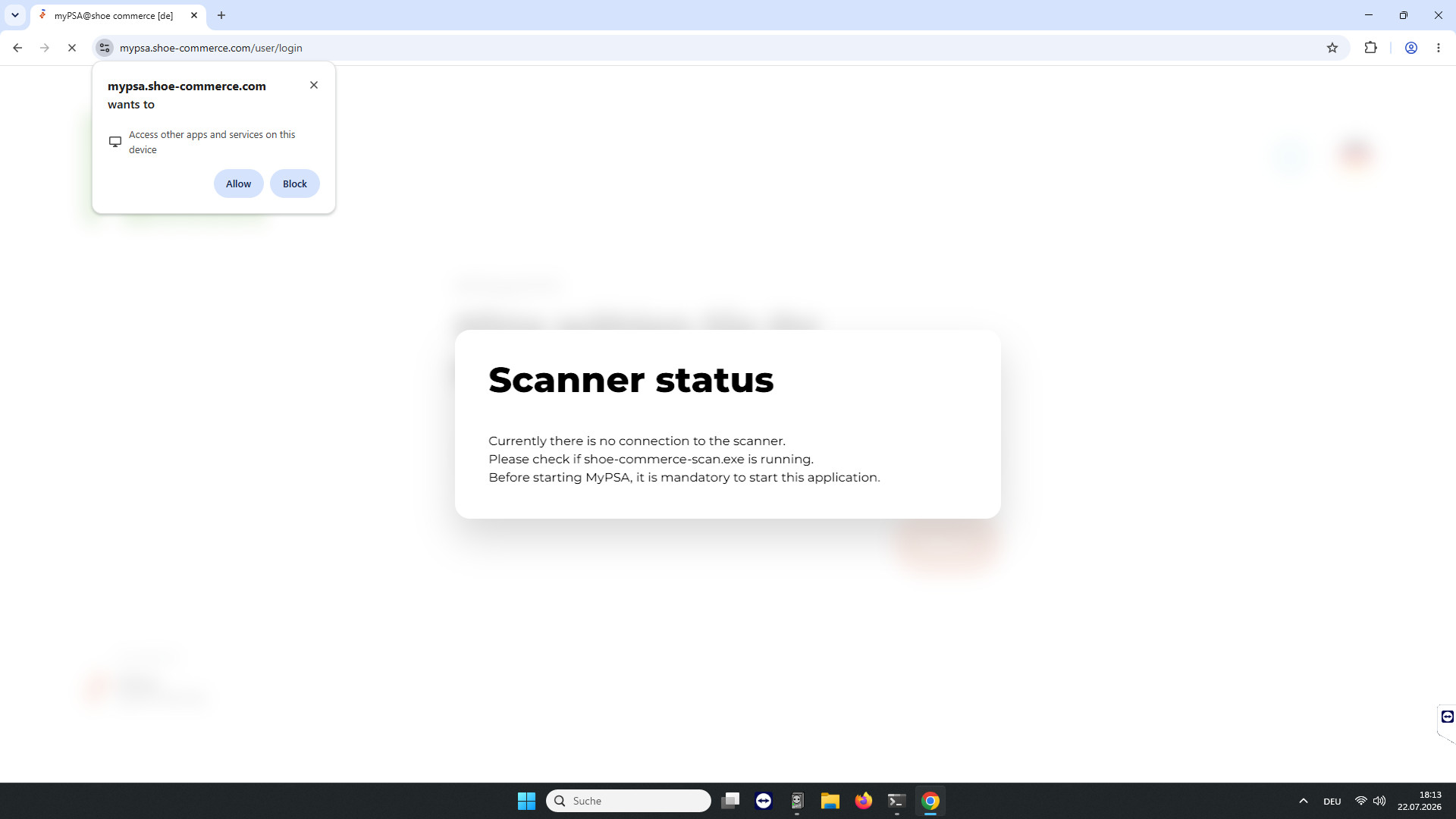
The scan.exe stops responding before the serial number prompt. In the Customer Journey, the message 'No connection to the scanner' appears.
Affected Browsers
Microsoft Edge / Mozilla Firefox / Google Chrome
Cause
For security reasons, the browser blocks website access to locally installed applications by default. As a result, MyPSA cannot communicate with the running scan-commerce-scan.exe – even if it was launched correctly.
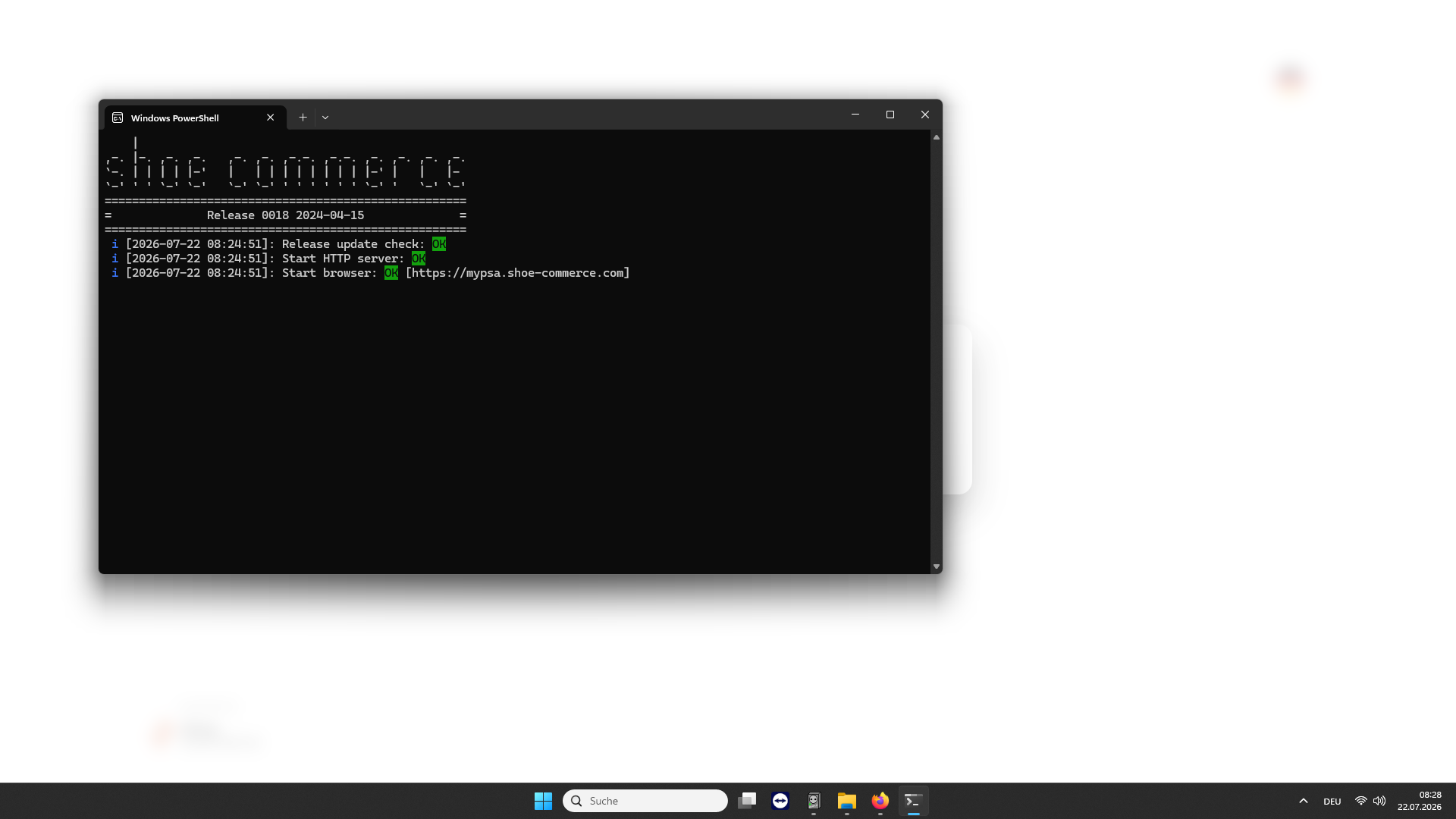
Solution for Mozilla Firefox:
1. Click the menu (the three lines) in the upper-right corner of the Firefox window and select Settings.
2. Select the Permissions and data section.
3. Look for the "Device apps and services" entry.
4. There, you can add exceptions for specific websites, block access, or disable requests entirely. The status of “https://mypsa.shoe-commerce.com” in the drop-down menu must be set to “Allow”.
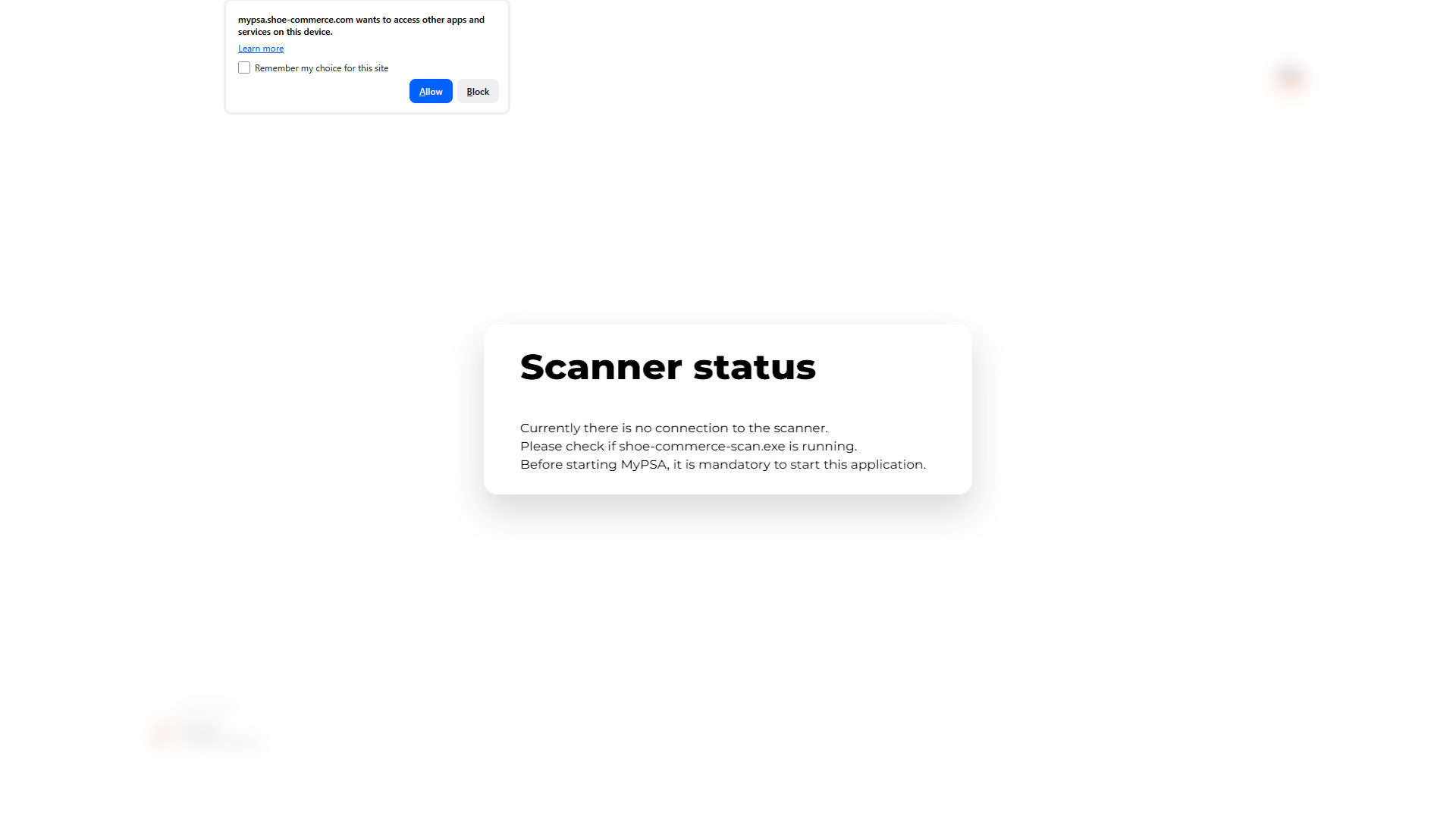
Solution for Microsoft Edge:
1. In Microsoft Edge, click the three dots (...) in the upper-right corner and select Settings.
2. In the menu on the left, click Privacy, search, and services.
3. Scroll down to the Site permissions section and click All Permissions.
4. Look for the entry Apps on device in the list.
5. Under Allow to access other apps and services on this device, add "mypsa.shoe-commerce.com".
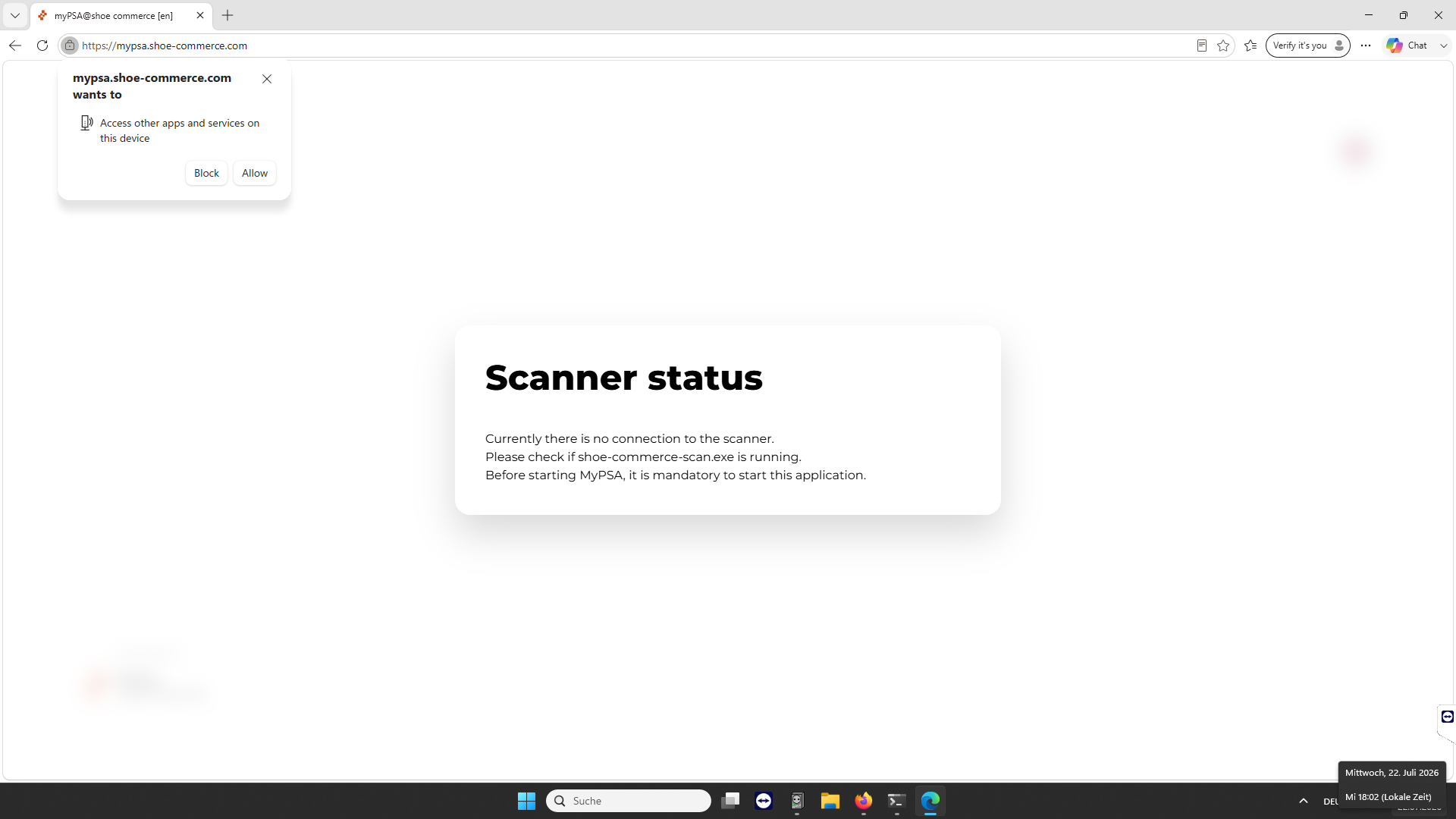
Solution for Google Chrome:
1. In Google Chrome, click the three dots (...) in the top-right corner and select Settings.
2. In the menu on the left, click Privacy and security.
3. Open the Site Settings section.
4. Under Recent activity, select "mypsa.shoe-commerce.com".
5. In the Permissions list, scroll down to the Apps on device entry.
6. Select “Allow” from the drop-down menu.