Table of Contents
Bulk actions
 Updated
by Andreas Knaupp
Updated
by Andreas Knaupp
The “Bulk actions” function allows you to edit a large number of data records simultaneously. Depending on the user rights assigned to you, different functions will be displayed in the bulk actions area or may not be available. In general, however, the following actions can be carried out:
Function | Description | Appearance |
Activate data records | Activates all selected data records that were previously deactivated. Active data records are neither highlighted in color nor shaded. | 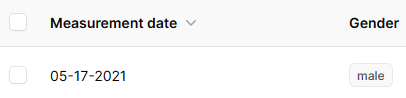 |
Deactivate data records | Deactivates all selected data records after a confirmation prompt. These are highlighted with a gray shading. | 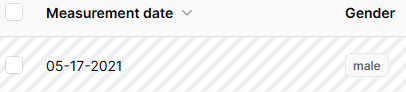 |
Delete data records | Deletes all selected data records after a confirmation prompt. These are highlighted with red shading. However, deleted data records can be restored. | 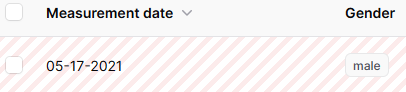 |
Restore data records | Restores deleted data records. As a result, this data record corresponds to an active data record again. | 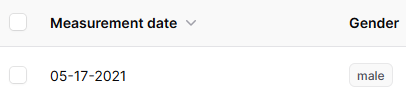 |
Export (Excel) | Exports all selected data records to an Excel file. For more info click here. |
Selection of data records
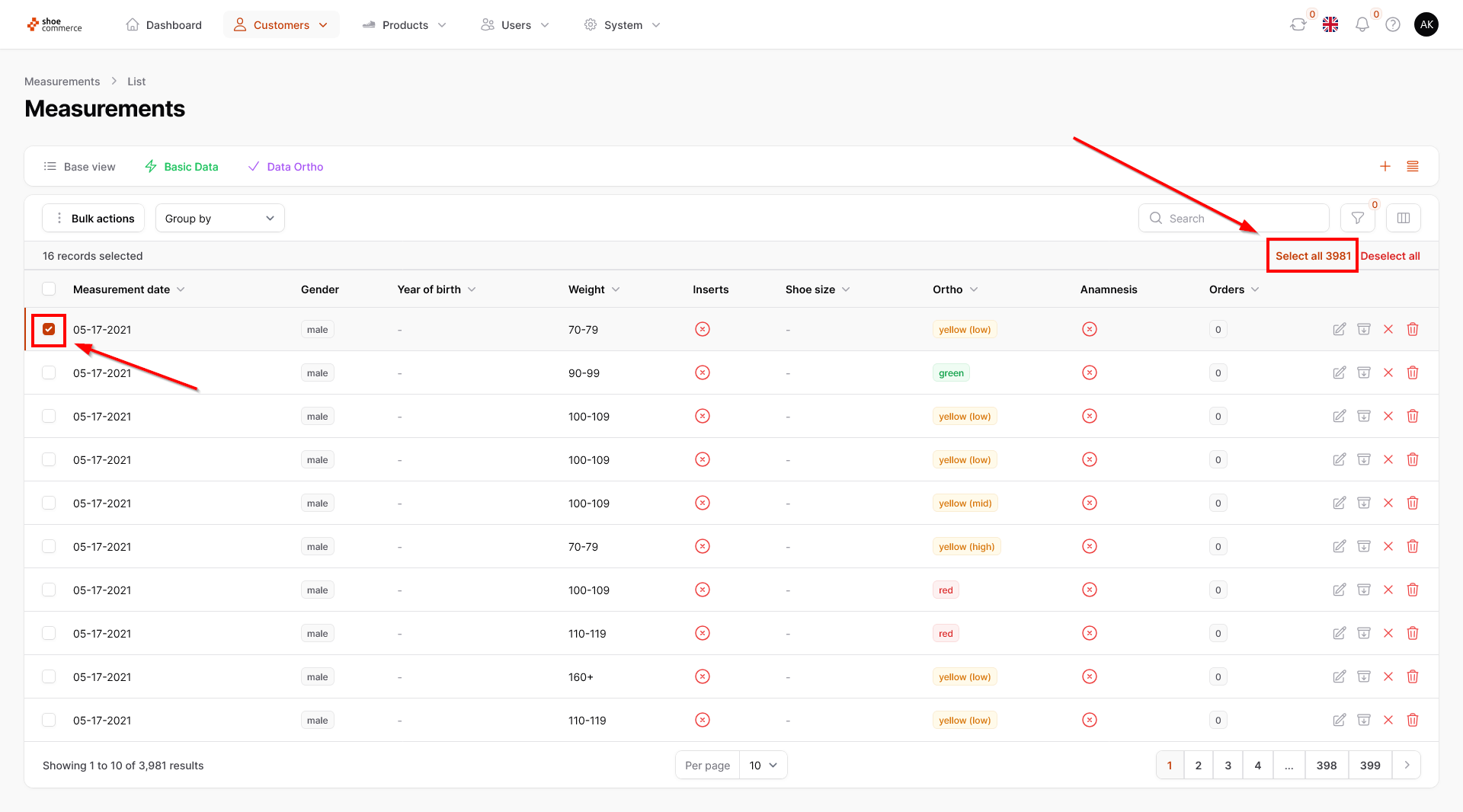
- In order to carry out the abovementioned actions, it is necessary to manually select at least one data record. This is done by simply clicking on the checkbox of the data record. The selected data record is now displayed as selected. Furthermore, a new drop-down menu with the name “Bulk actions” is shown at the top of the menu bar.
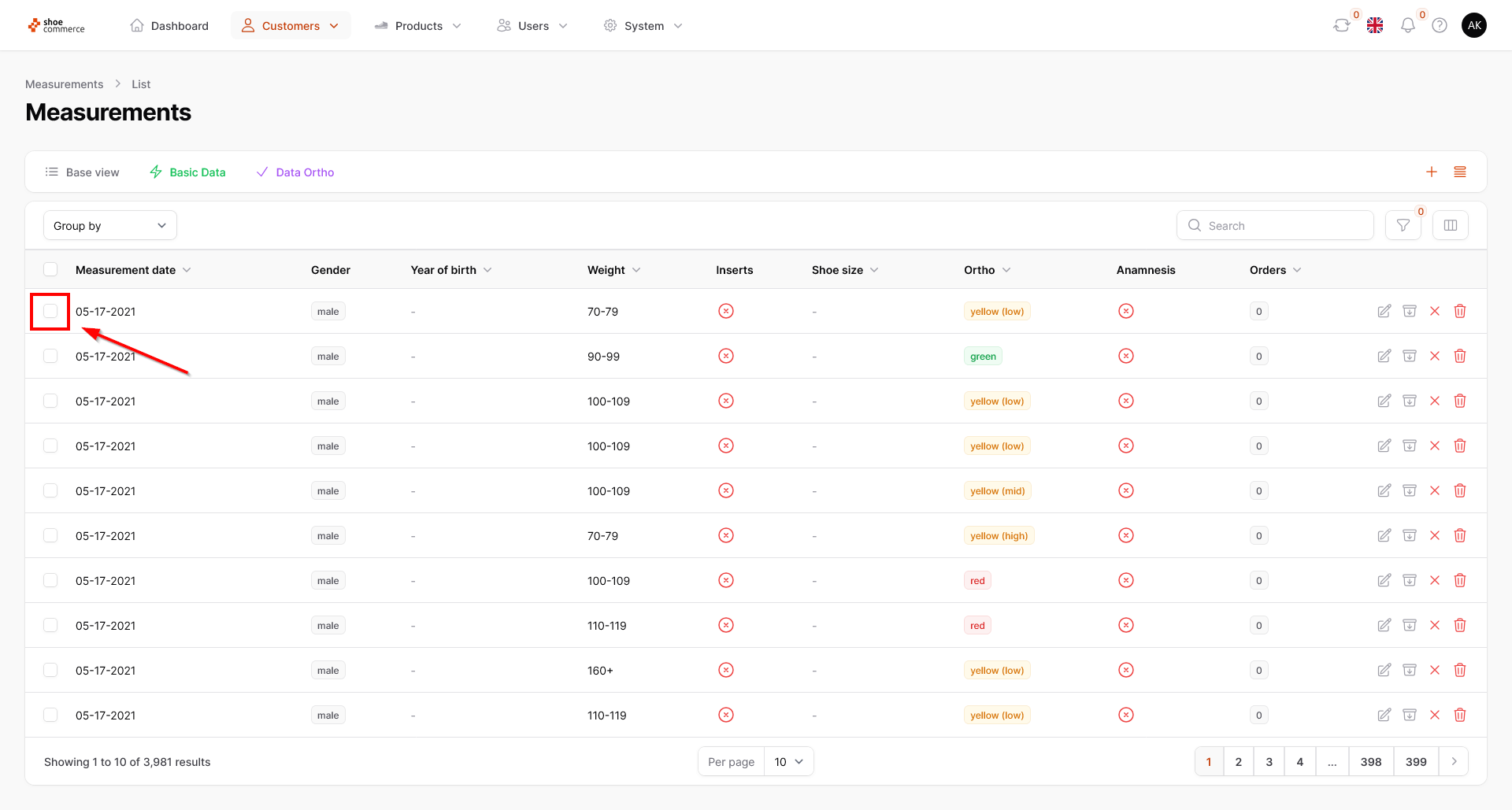
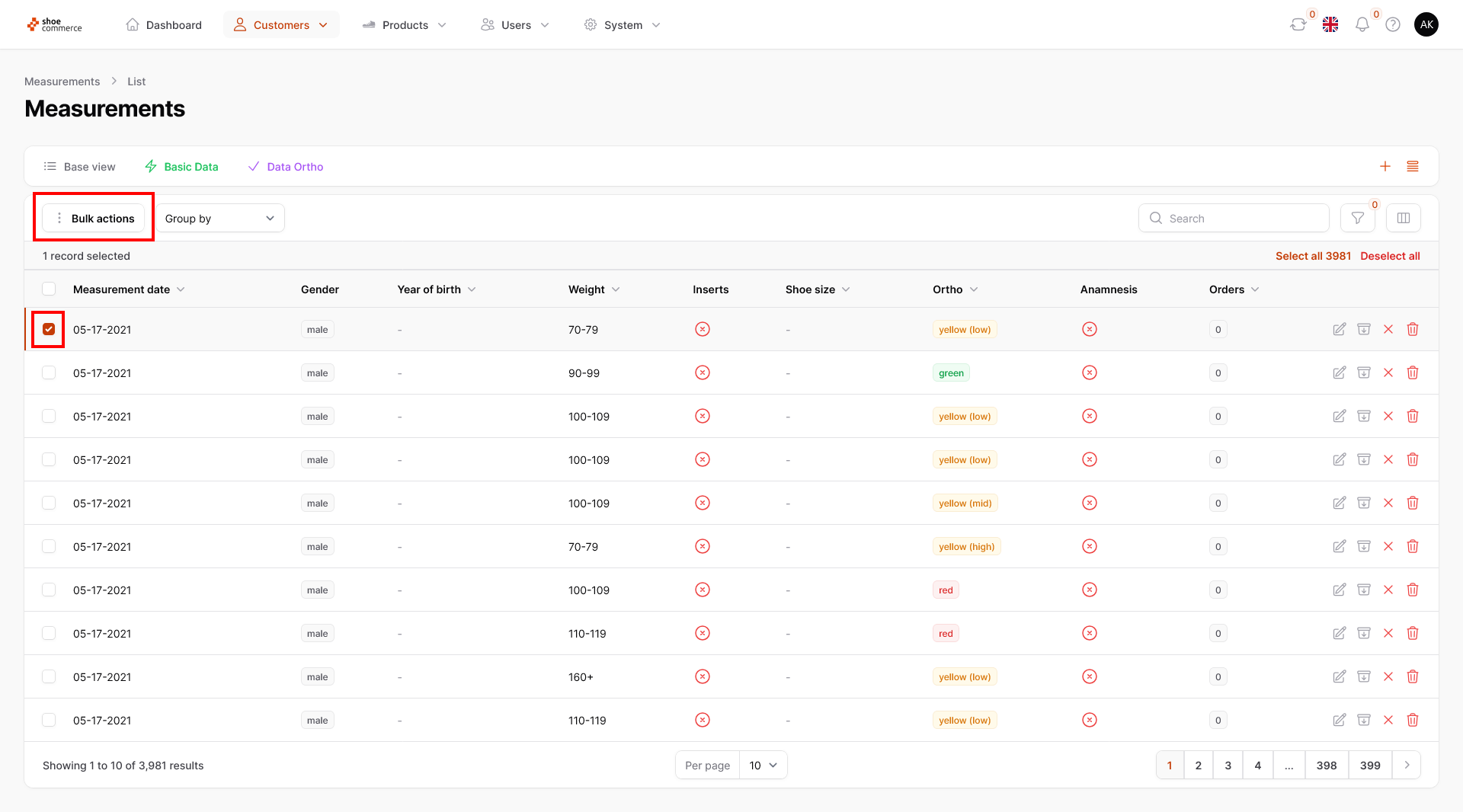
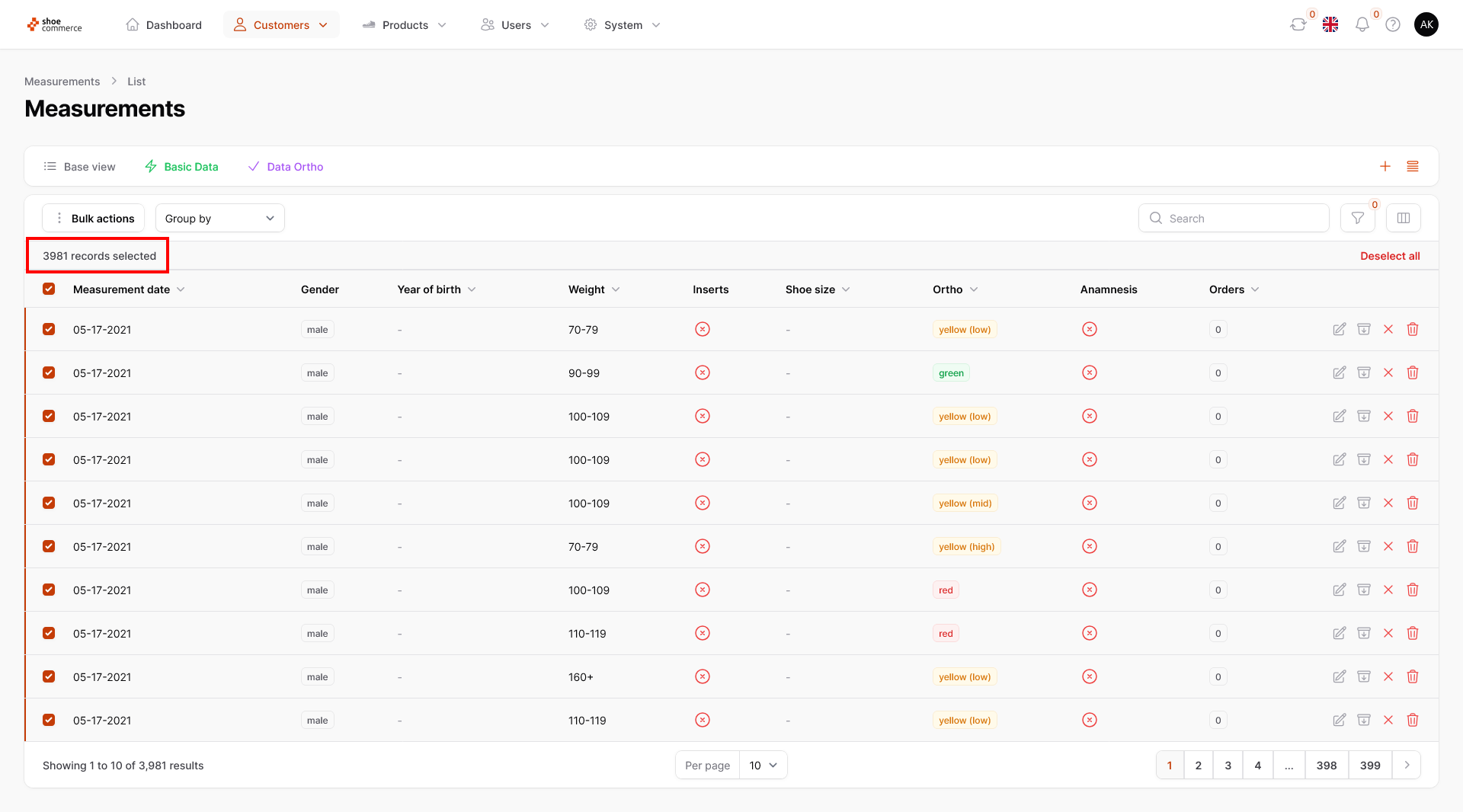
- To select multiple data records, you can either activate them individually by clicking on the checkboxes, or you can click on the top left checkbox to select all data records that are currently displayed. The number of selected data records is also shown in text at the top. If you want to display more than ten data records, please select a different number from the “Per page” drop-down menu at the bottom of the list view.
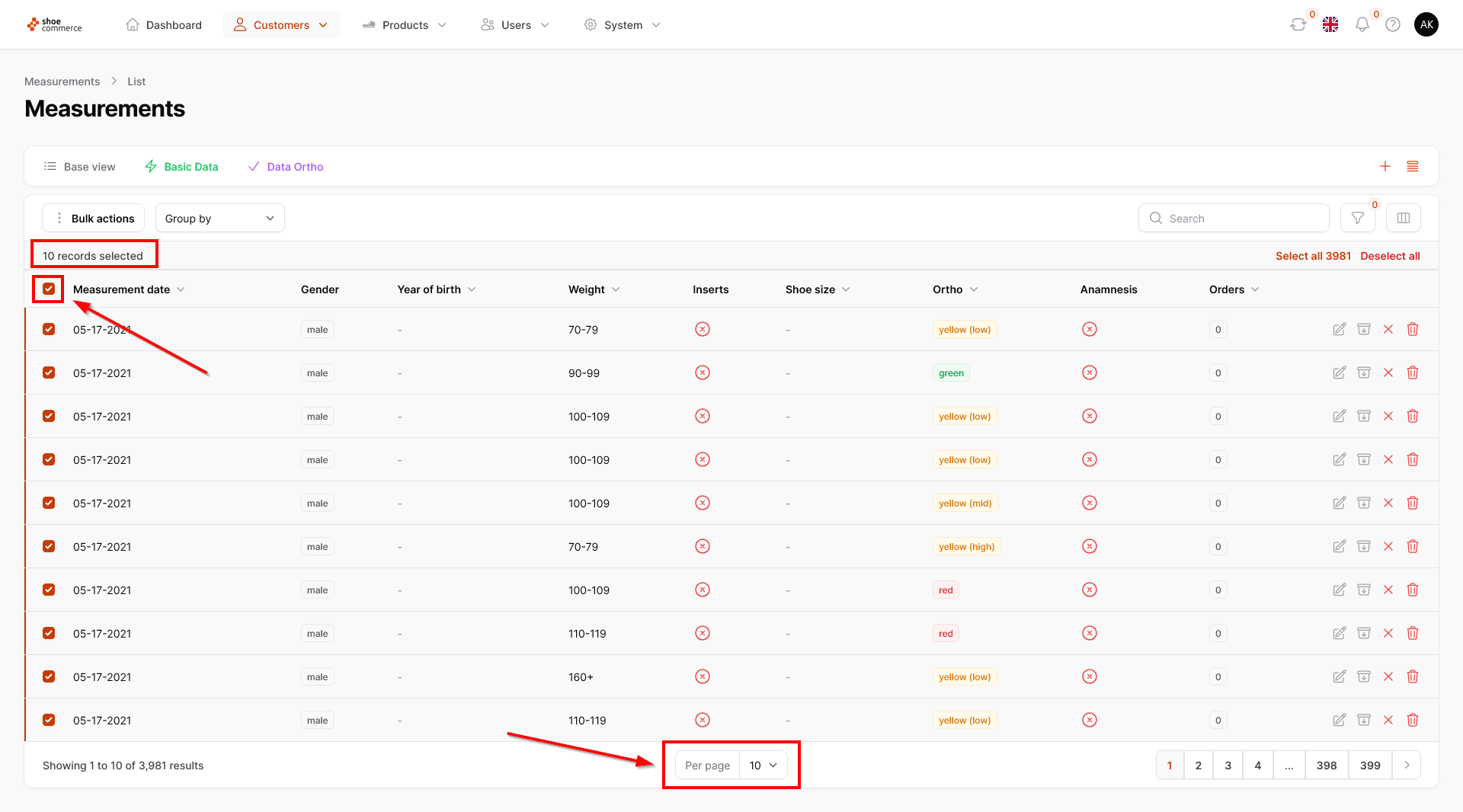
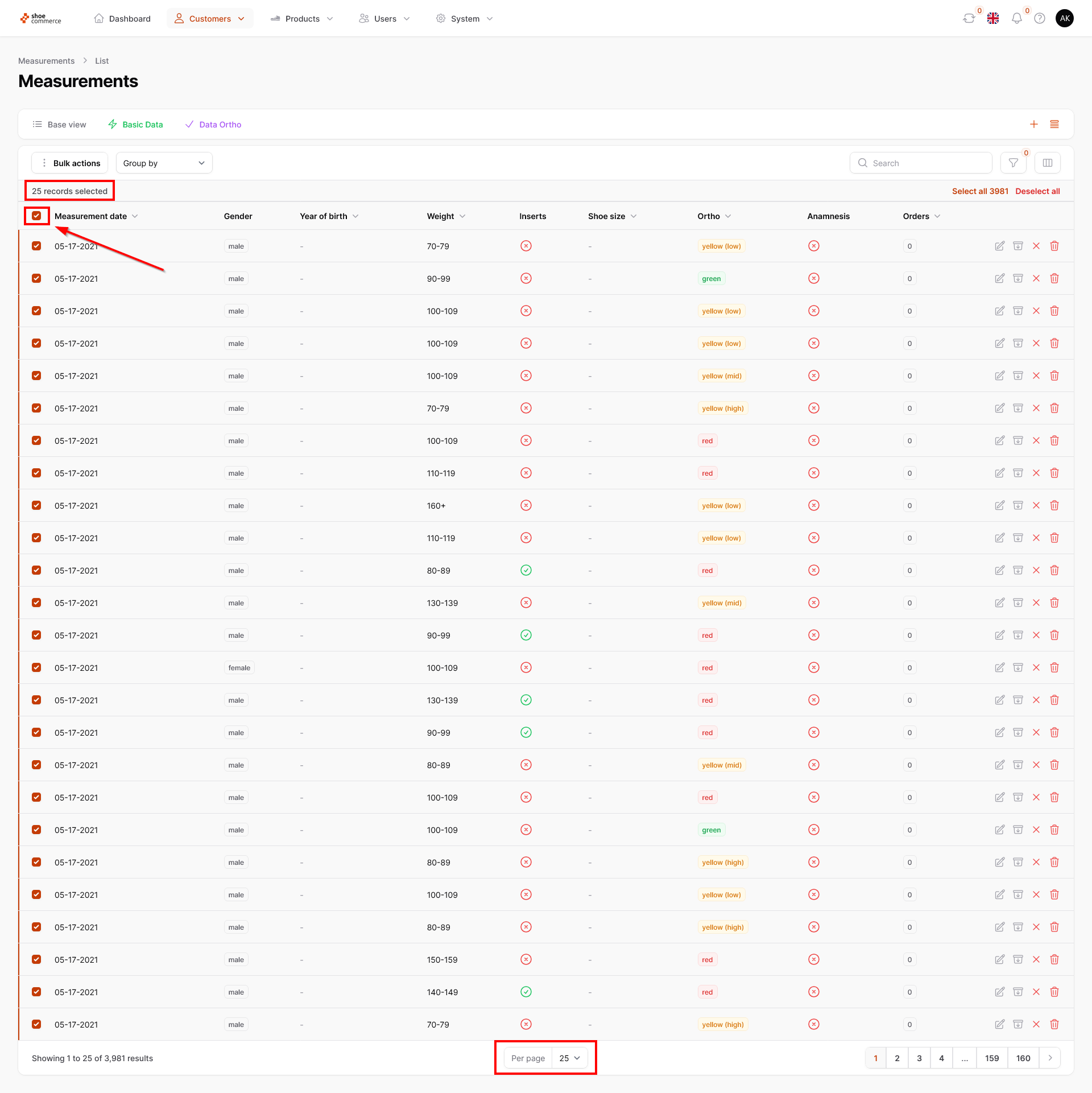
- To select the entire database and not just the visible part of the data records, it is first necessary to manually select at least one data record. This will display the option to select the entire dataset in the top right-hand corner (3,950 records in this example). This means that non-visible data records on subsequent pages are also included in the selection.
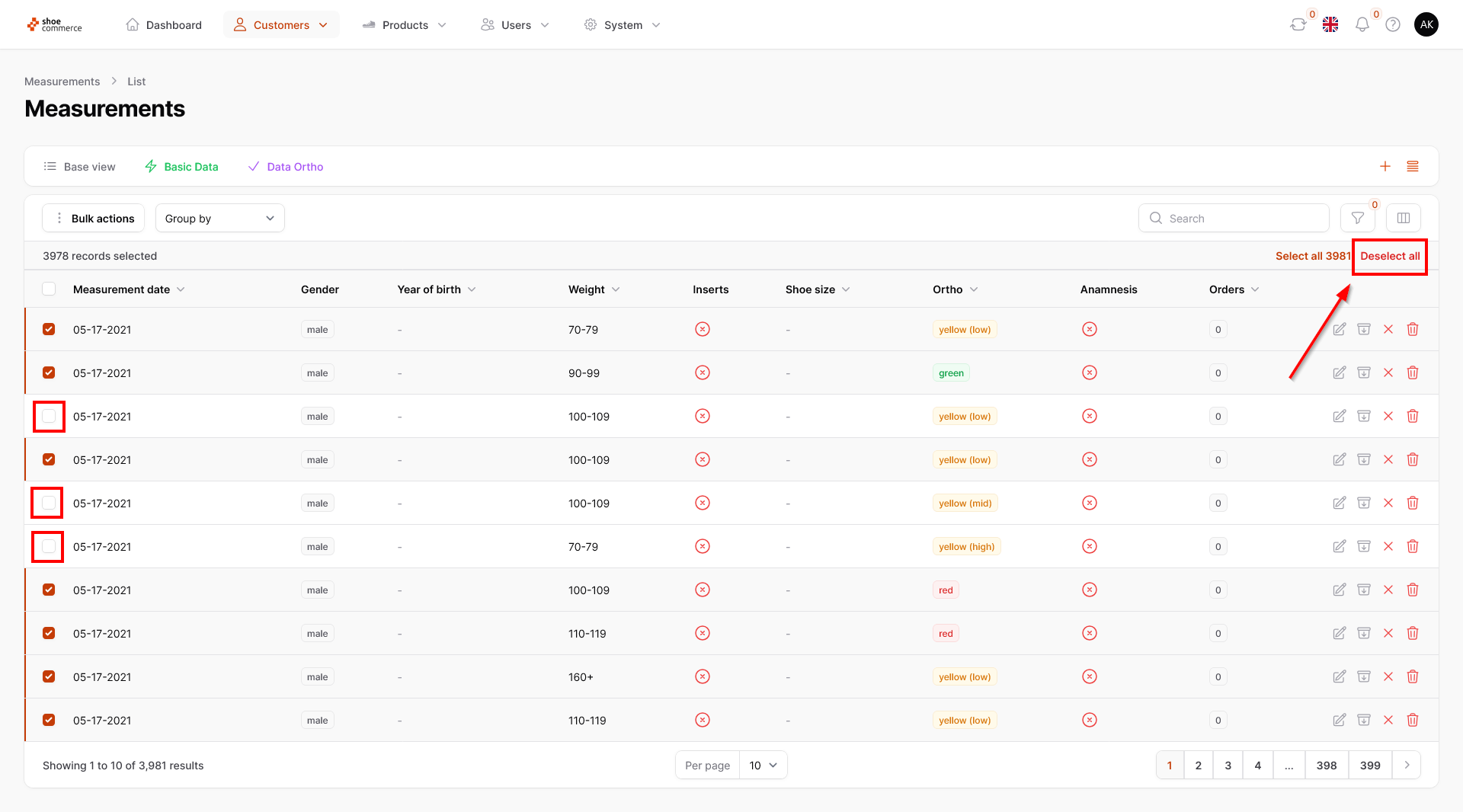
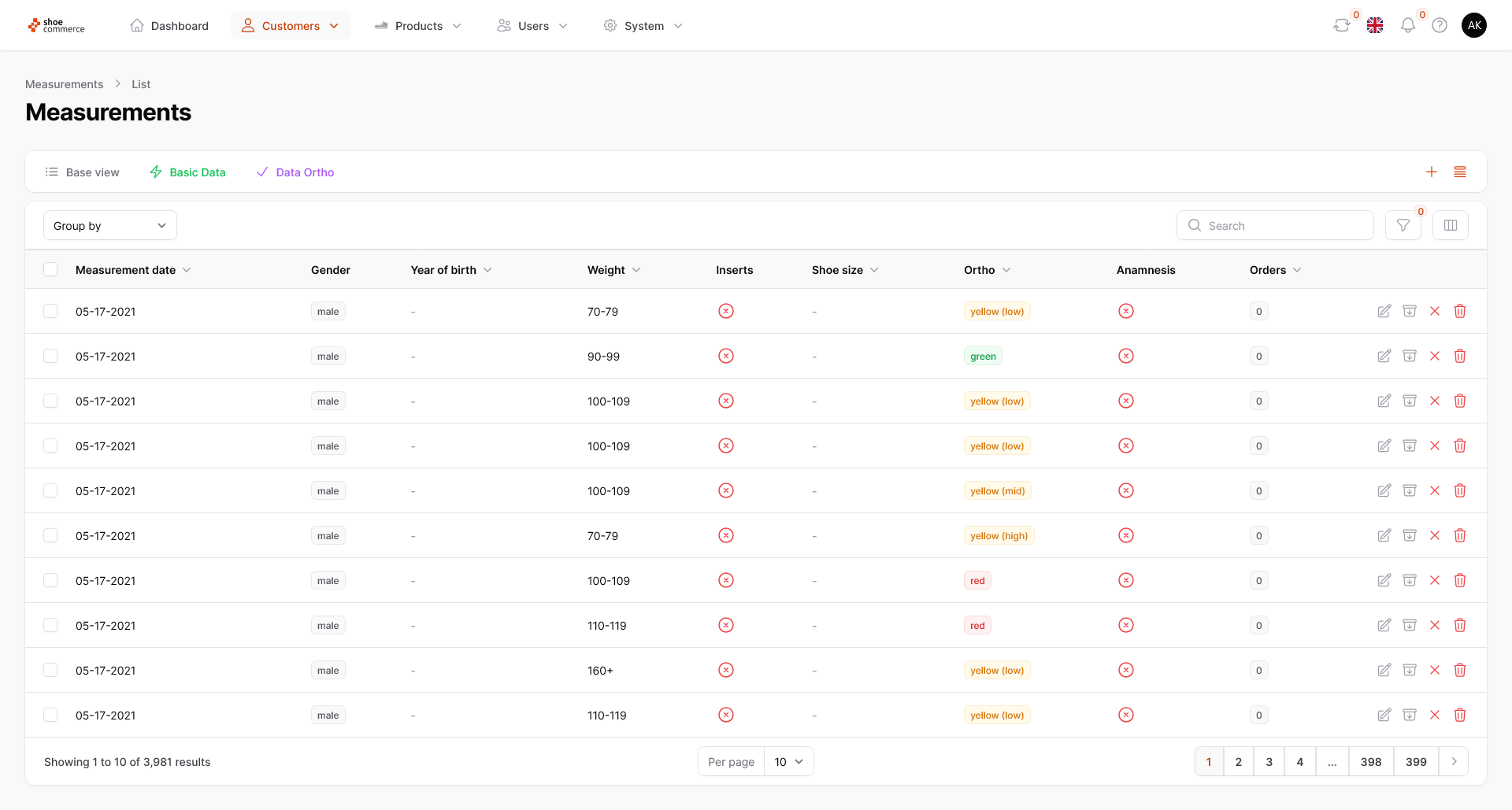
- To remove specific data records from the selection, simply click in the checkbox of the respective data record. However, if you would like to deselect all records, please click on “Deselect all” in the top right-hand corner. This will take you back to the original view.
Functions of bulk actions
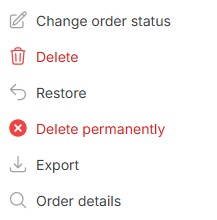
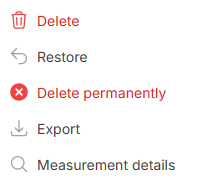
In the following table you will find the options that you can carry out using the “Bulk actions” function depending on the area of the backend. Please note that different functions may or may not be displayed depending on the user rights assigned to you.
Backend Menu | Functions | More information on |
 | ||
 |