Table of Contents
Measurements
 Updated
by Andreas Knaupp
Updated
by Andreas Knaupp
This area shows you all measurements that are assigned to the partner/user via the accounts.

Editing/Details of measurements
There are two ways to view or edit the details of an existing measurement.
- Please click anywhere in the area of the data record you wish to view (hand symbol of the mouse pointer).

- Please click on the “Edit” symbol on the far right of the corresponding data record.
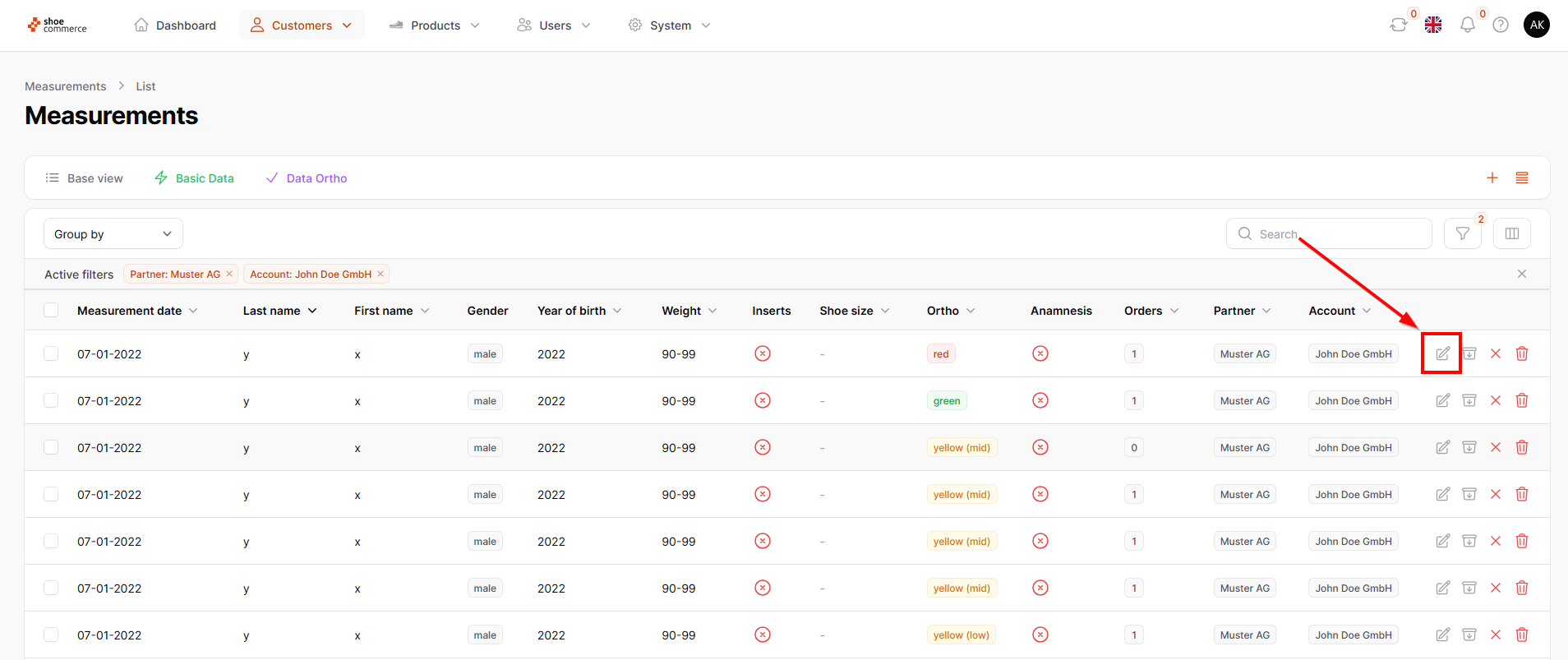
- The detailed view opens with the following text blocks, which can be opened or closed individually by clicking on them.
- Core data (displayed already open by default)
- Ortho (displayed already open by default)
- Downloads (displayed already open by default)
- Notes
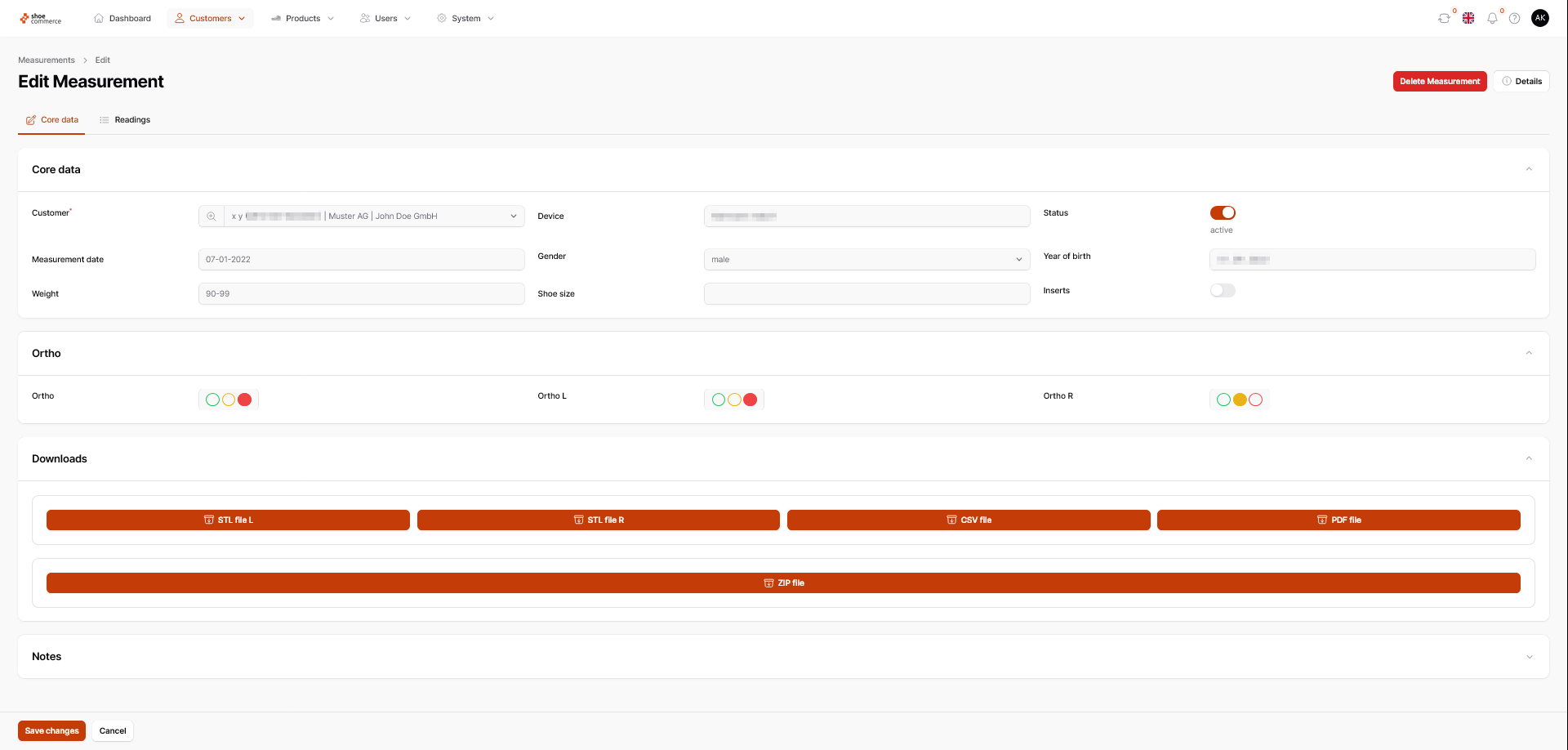
Core Data
In the core data area, you will see the following fields. Click on the magnifying glass symbol next to “Customer” to open further details.


Status | Can be activated/deactivated via slide switch |
Customer | Details on the customer / Further details can be viewed by clicking on the magnifying glass symbol |
Device | Name of the device used for the measurement |
Inserts | Indicates if the end customer wears orthopaedic insoles. |
Ortho
In the Ortho area, the individual status for each foot and the overall status are displayed (in this case orange).

Downloads
In the download area, you have the option of copying the measurement data to your computer in various file formats, separated into left and right foot. You can also download the anamnesis sheet in PDF format here. Please note that you will only be shown download buttons for data that is available in the system. If no data is available, the download buttons are hidden. The following graphic is therefore only an example.

The measurement data available for download is shown below as an example:
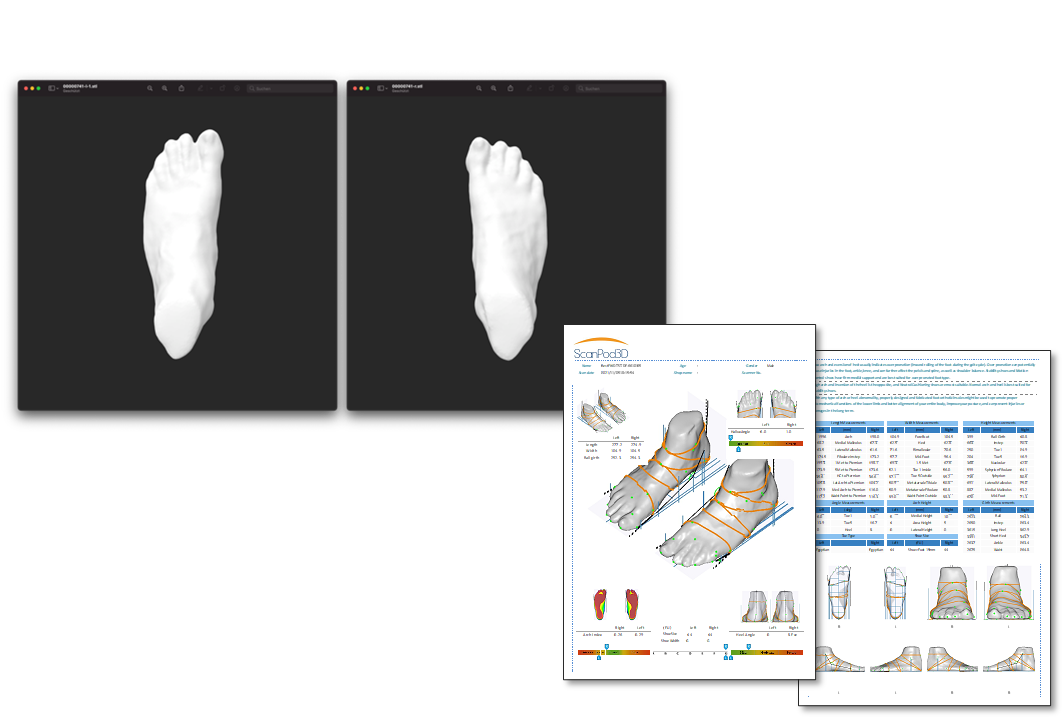
You can still download the measurement data (as a complete ZIP file) directly from the list view in the backend. To do this, please click on the download symbol of the required measurement.

Notes
Here you can add your own notes (up to 500 characters) on the selected measurement.

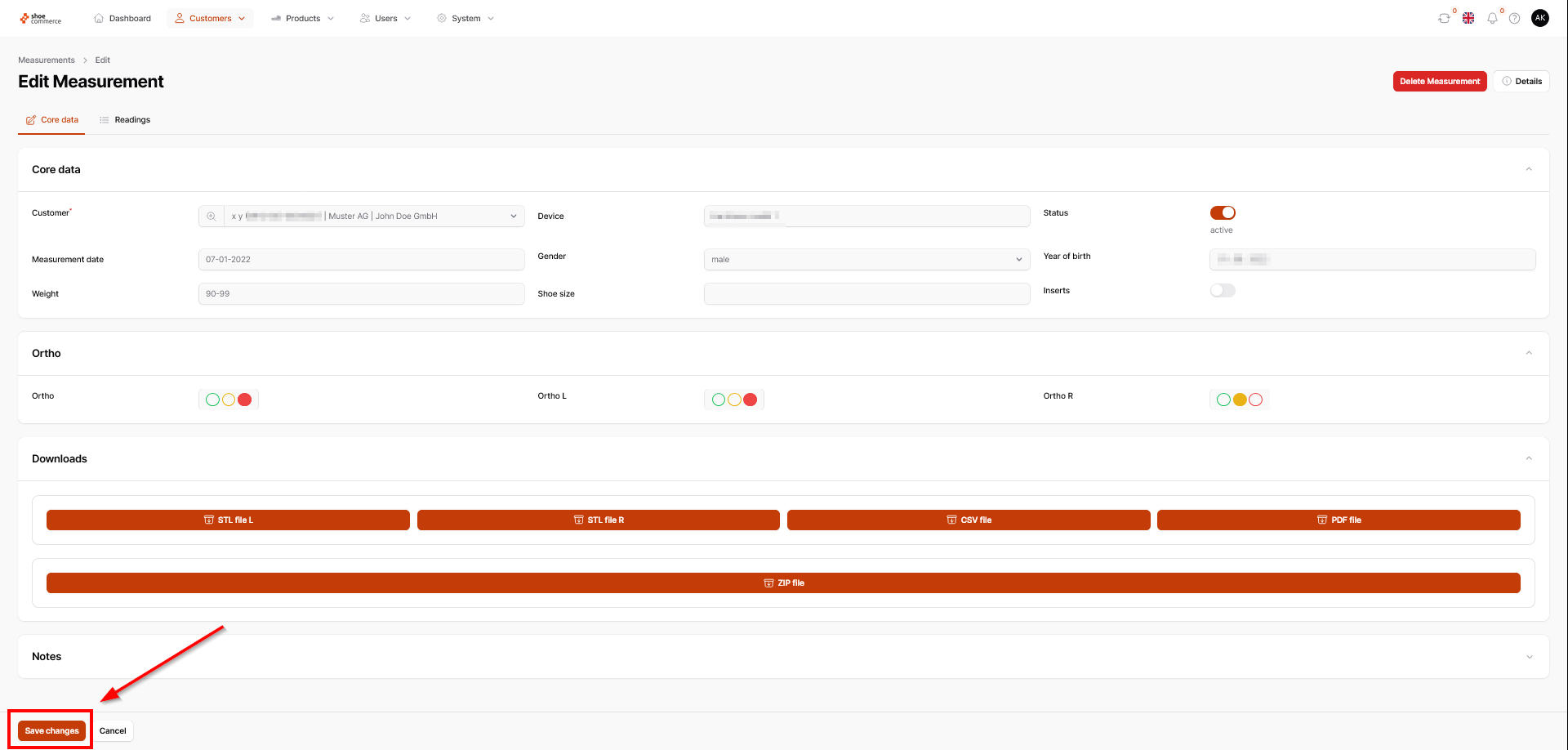
- Please do not forget to confirm changes (e.g. notes on the measurement) by clicking the “Save changes” button at the bottom left. If changes are not saved, a reminder message will appear at the top right of the screen.
View and export details of multiple measurements
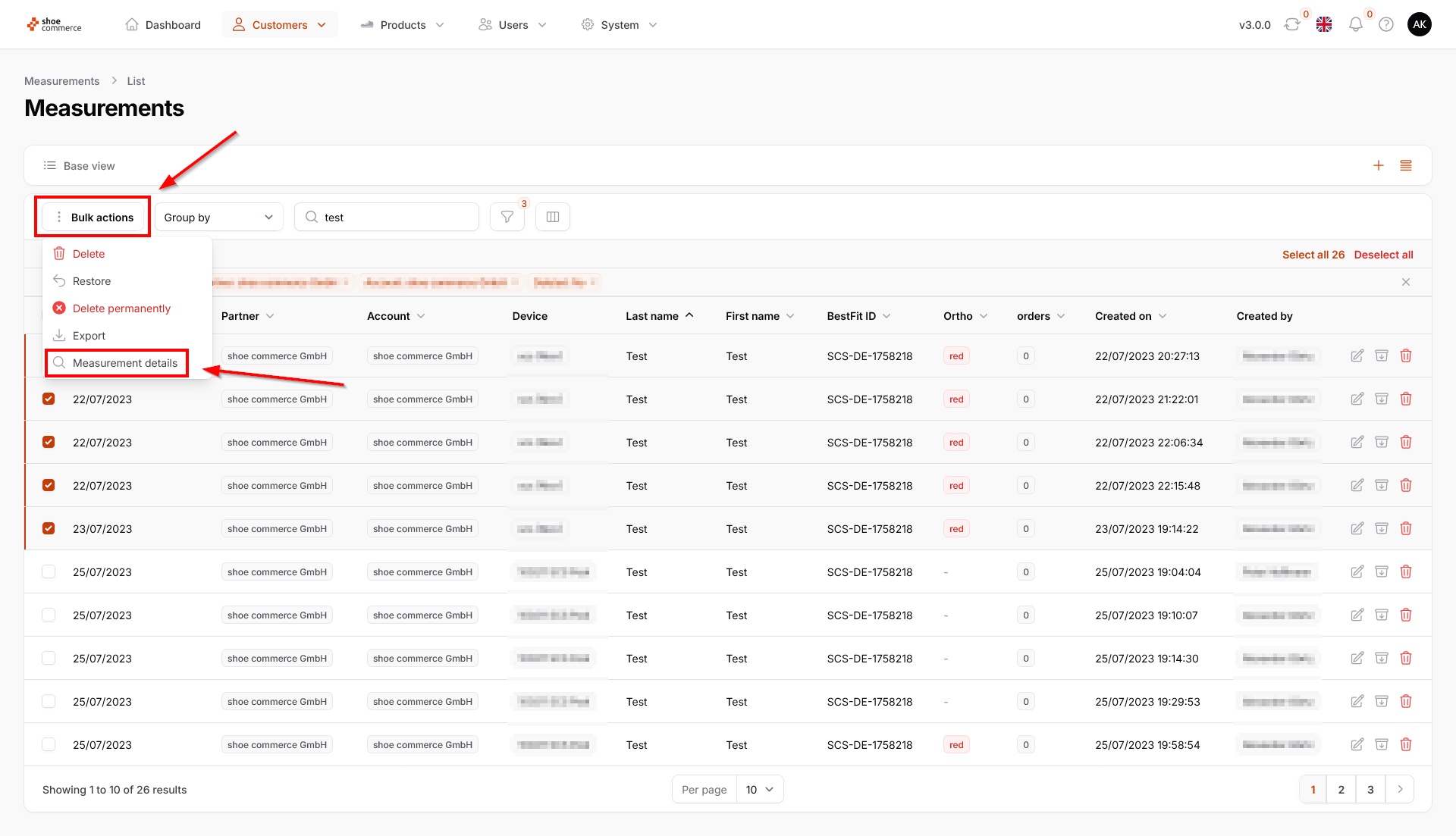
Details about one or more measurements can be accessed in the list view via bulk actions.
- First select at least one data record by clicking on the left-hand side. This opens the “Bulk actions” menu at the top left and the function for selecting all data records (top right). All visible data records can be activated by clicking on the top left-hand box.


- Now click on the “Bulk actions” button to call up all available functions. Select “Measurement details” from the drop-down menu that opens.
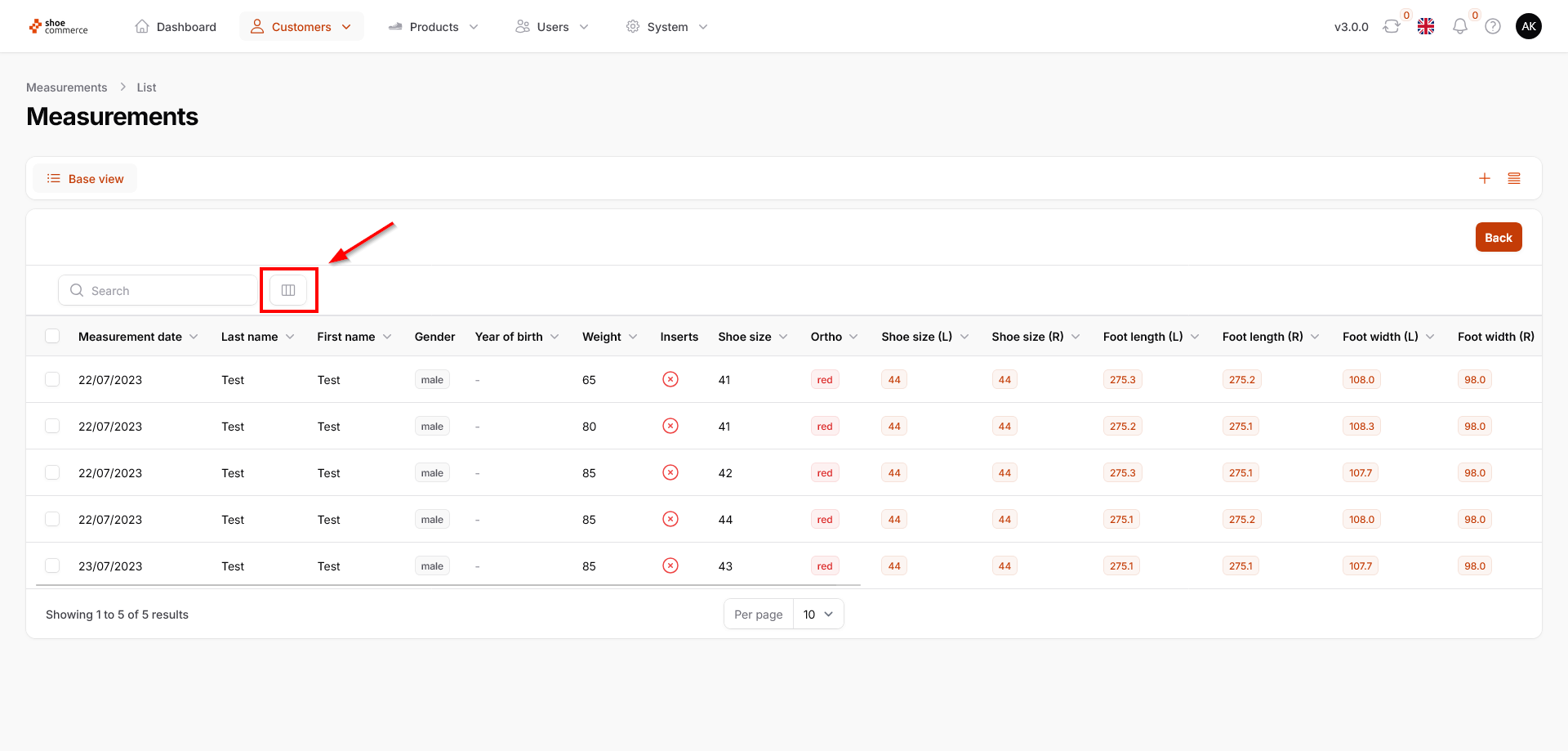
- For the data records you have selected in the list view, you will now be shown all the details of the corresponding measurements. Here too, you have the option of showing or hiding all the required columns.
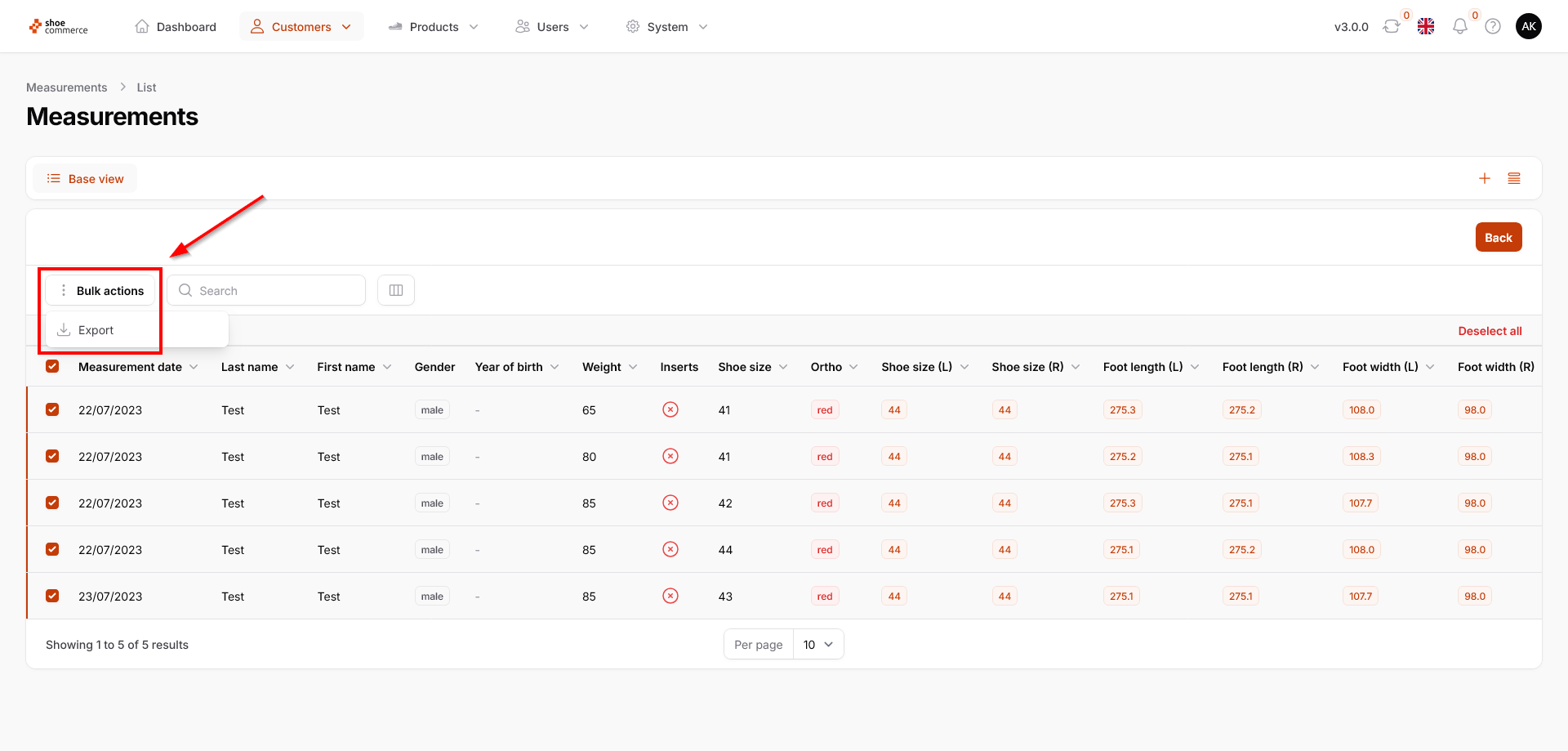
- To start exporting the data to Excel, first select at least one data record again so that the “Bulk actions” function is displayed. After clicking on this, the “Export” function is shown, which starts the download. Please note that only all visible columns that you have activated in the backend will be exported.

- Click on the “Back” button at the top right to return to the original list view of the backend.